Connect Google Classroom to Cursare
Use Google Classroom as the class entry point and Cursare as the learning environment. The connection brings four workflows together: select a Google class, map it to a Cursare cohort, explicitly enroll matched learners, and publish quizzes as assignments with optional grade return.
| In Google Classroom | In Cursare | Result |
|---|---|---|
| Active class | Content + free offer + cohort | A stable mapping between both environments |
| Student roster | Accounts with the same email | A reviewable preview before any enrollment |
| Assignment | Quiz in published content | A Classroom draft with a link to the learner experience |
| Student submission | Graded attempt in Cursare | A proportional grade returned to Classroom when enabled |
Before you begin
Prepare both sides before installing the app:
- In Cursare: sign in as an organization owner or administrator. Create content, a free offer, and a cohort linked to that offer. Publish the content if you plan to create Classroom assignments.
- In Google: use an account that can access and manage the class. The class must be active.
- For learners: the Cursare account email must match the email returned by Classroom for automatic matching.
- In a managed Google Workspace school: the domain administrator might need to approve Cursare as a third-party app before teachers can grant access.
Paid offers are not eligible for this workflow. A roster import cannot bypass checkout, a purchase, or commercial rules, so only free offers appear as mapping targets.
Flow at a glance
- Install the Google Classroom app for the organization.
- Select an active Google class and its destination Cursare cohort.
- Enable roster access and review the preview.
- Confirm the eligible enrollments.
- Enable assignments and grades when that workflow is needed.
- Create assignments as Classroom drafts and publish them there when ready.
Step 1 — Install the app
Open Settings → Integrations → Google Classroom and select Install Google Classroom.
In Google:
- Select the account that teaches or administers the class.
- Confirm that the consent screen identifies Cursare.
- Grant read-only access to classes.
- Wait for the automatic return to the integration page.
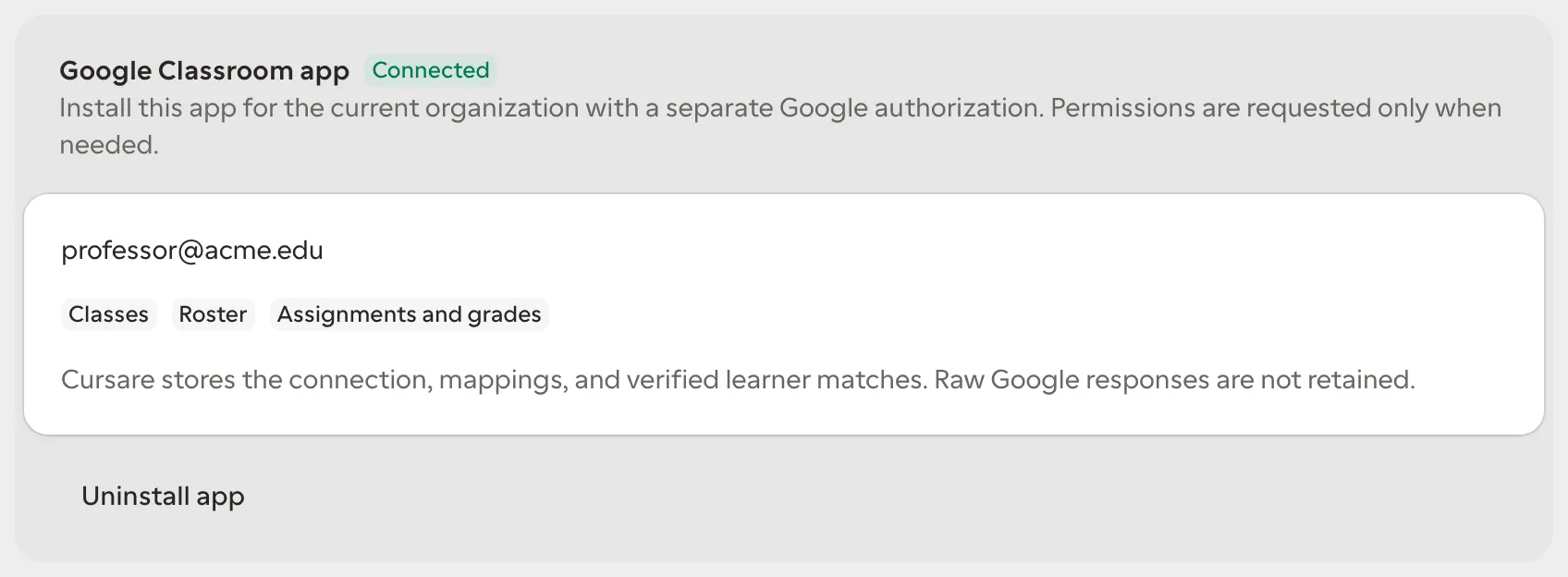
When authorization finishes, Cursare displays the authorized email, the Connected state, and the Classes badge. At this stage Cursare can discover active classes, but it cannot read rosters or create assignments yet.
Step 2 — Grant only what is needed
Cursare requests permissions progressively. You do not need to allow grade writes merely to discover classes.
| Stage | Action in Cursare | Permission requested | Purpose |
|---|---|---|---|
| Connection | Install Google Classroom | identity and read-only classes | Identify the account and list active classes |
| Enrollment | Enable roster sync | read-only rosters and profile emails | Build the preview and match accounts by email |
| Assignments | Enable assignments and grades | manage student coursework and grades | Create work, locate submissions, and return grades |
These permissions correspond to the Google scopes openid, email, classroom.courses.readonly, classroom.rosters.readonly, classroom.profile.emails, and classroom.coursework.students. Cursare includes previously granted access when the connection is expanded.
Step 3 — Map the class
Under Map a class:
- Choose the Google class.
- Choose the Cursare Content · Cohort destination.
- Select Create mapping.
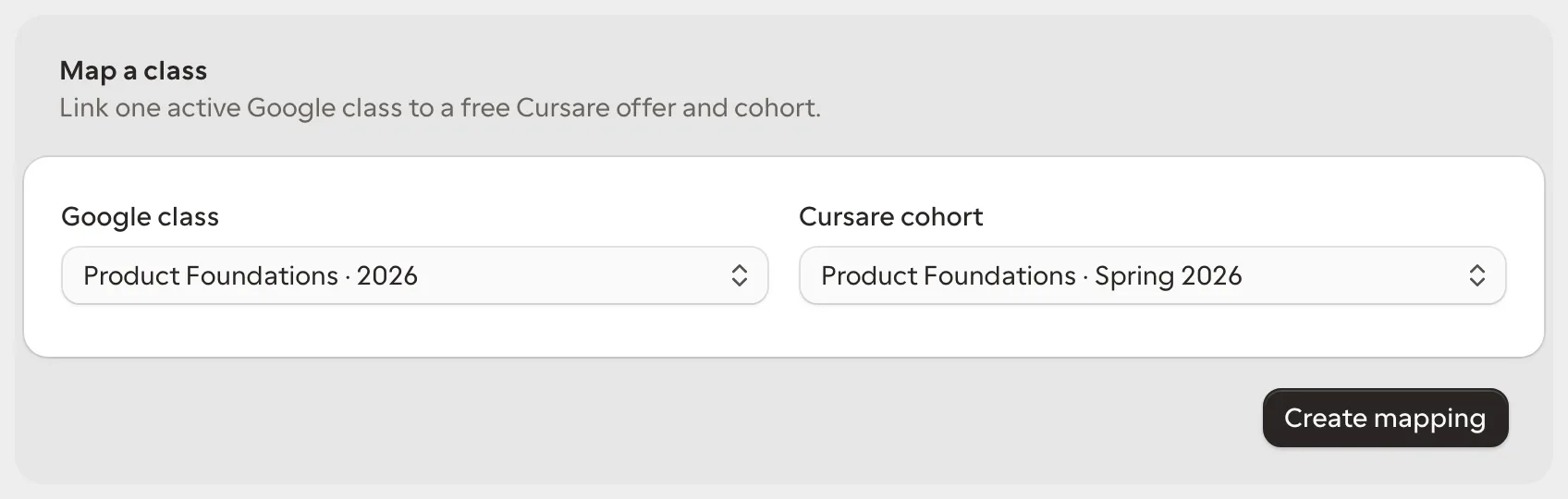
A Google class has one active mapping inside an organization. Mapping the same class again updates its destination instead of creating two competing synchronizations.
The mapping does not copy content into Google and does not enroll anyone. It establishes the relationship used by subsequent actions.
Step 4 — Review and apply the roster
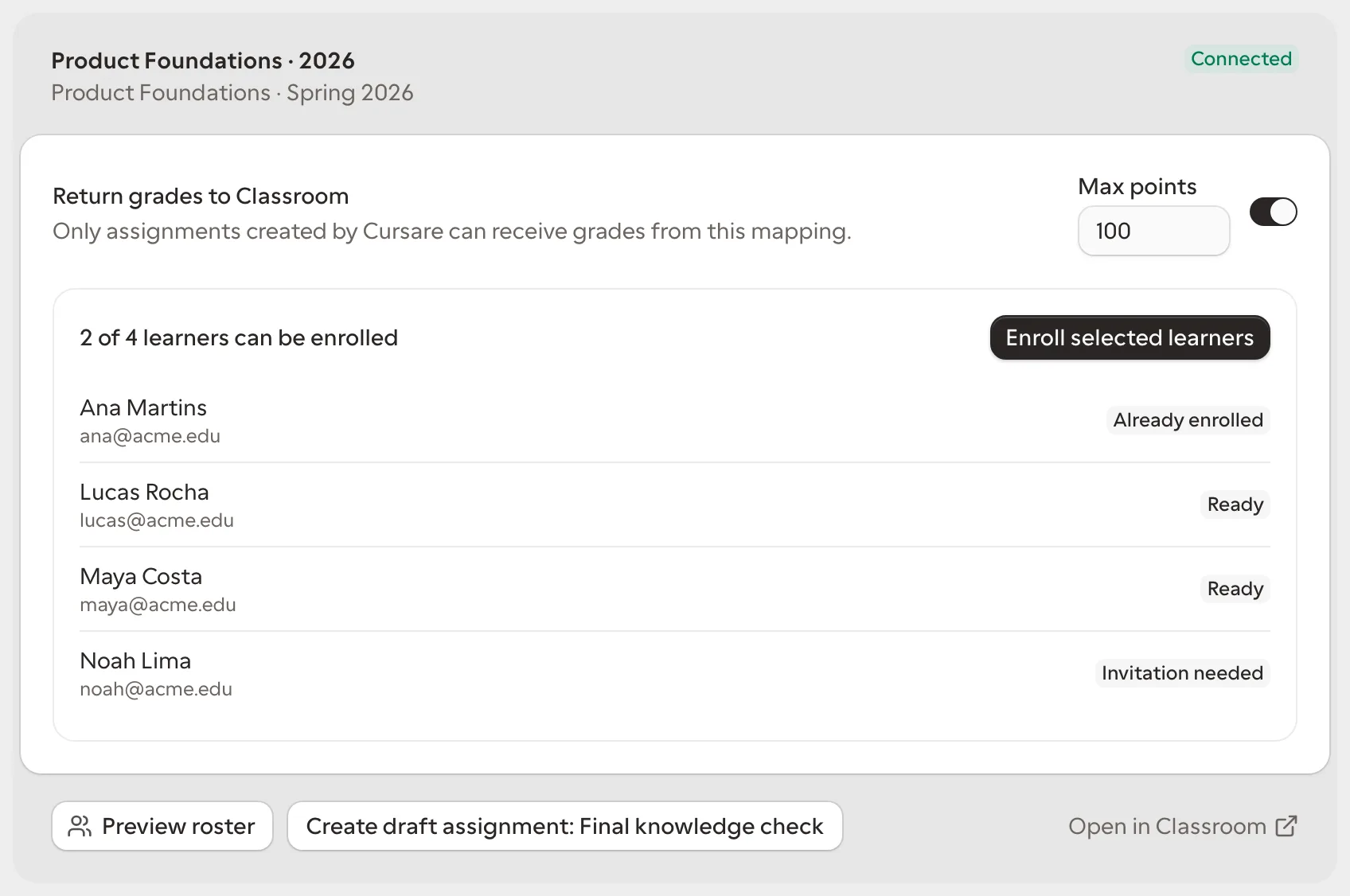
After enabling roster access, select Preview roster on the mapping. Cursare reads up to 500 students, normalizes their emails, and compares each person with existing accounts and enrollments. The preview changes no data.
| Status | Meaning | What applying does |
|---|---|---|
| Already enrolled | The account already has access to the content | Links the Google identity without duplicating enrollment |
| Ready | A Cursare account has the same email but no enrollment | Enrolls the person in the mapped offer and cohort |
| Invitation needed | No Cursare account matches the email | Creates nothing silently; invite the person and generate a new preview |
| Removed from Google class | A previously linked person is no longer in the Classroom roster | Reports the difference while preserving Cursare access and progress |
Review names and emails, then select Enroll selected learners. Application runs in the background and is retry-safe: applying the same snapshot does not duplicate an account, enrollment, cohort membership, or identity link.
Step 5 — Publish an assignment
Enable Assignments and grades and publish the content in Cursare. Every eligible quiz in the published version appears on the mapping as Create draft assignment: quiz name.
When selected, Cursare:
- creates a draft assignment in the Google class;
- uses the content title and first quiz question to identify the assignment;
- attaches the canonical URL that takes the learner into Cursare;
- stores the class, assignment, and quiz ids for safe updates and grade return;
- looks for coursework already associated with the same link before creating another item on retry.
Open the assignment in Classroom, review its title, instructions, due date, and audience, and publish it when ready. Creating the draft in Cursare does not distribute it automatically.
If no assignment button appears, confirm that the content is published, the published version contains at least one valid quiz, and the Assignments and grades badge appears on the connection.
Step 6 — Return grades
For each mapping, choose Max points between 1 and 10,000 and enable Return grades to Classroom.
When a linked learner completes the quiz, Cursare converts the result to the configured scale. A result of 8 out of 10, for example, becomes 80 on a 100-point scale. The grade is rounded to an integer and sent as both the draft and assigned grade on the matching Classroom submission.
Grade return occurs only when every condition is true:
- grade return is enabled on the mapping;
- the person was matched through the Google identity stored during roster reconciliation;
- the attempt belongs to the content and quiz published through this mapping;
- Cursare created the Classroom assignment and the same Google developer project can still modify it;
- a matching Classroom submission exists.
If Google rejects the update, the original Cursare result remains intact. Disabling grade return stops new writes without deleting results or grades already recorded.
Privacy and security
The integration is designed for least privilege and a clear audit trail:
- OAuth tokens are encrypted at rest and never returned by the UI or API;
- raw Google responses are not retained;
- Cursare stores the authorized identity, granted scopes, mappings, and verified learner matches;
- connection, mapping, preview, enrollment, publication, grade settings, and grade return are recorded in the organization audit trail;
- only an owner or administrator can connect, expand permissions, map, apply rosters, change grade settings, or disconnect.
Disconnect without losing history
Select Uninstall app to revoke authorization and disable mappings. This stops new class reads, enrollments, publications, and grade returns.
Disconnecting does not delete learners, cohorts, progress, attempts, grades, assignments already created in Google, or audit history. Those records remain to explain activity that happened before revocation.
Troubleshooting
The class is missing
- Confirm that you selected the correct Google account.
- Confirm that the class is active, not archived.
- Confirm that the account can open and manage the class in Classroom itself.
- If another identity is connected, uninstall and reinstall with the correct account.
Google blocked access
In managed domains, ask the Google Workspace administrator to review Cursare under Security → Access and data control → API controls → Manage third-party app access. They can allow the app for the specific Google data it needs. See the official Google Workspace instructions.
A learner shows “Invitation needed”
No Cursare account matches the email returned by Classroom. Invite the learner with that exact address, wait for the account to exist, and generate another preview. The integration never creates identities silently.
The connection shows “Needs attention”
Authorization might have been revoked, a scope might be missing, or Google might be unavailable. Retry after confirming the account's access. If a permission was removed, reinstall the app and grant the required modules.
A grade did not reach Classroom
Confirm that grade return is enabled, Cursare created the assignment, the learner was linked through the roster, and a Classroom submission exists. Cursare does not take ownership of assignments created manually in Google.
Production setup for Cursare operators
This section is for the team configuring the OAuth project, not the school administrator.
- Enable the Google Classroom API in the production project.
- Use an OAuth client dedicated to Classroom; do not reuse the sign-in or Analytics client.
- Register
https://cursare.com/api/integrations/classroom/callbackas an authorized redirect URI. - Configure
GOOGLE_CLASSROOM_CLIENT_IDandGOOGLE_CLASSROOM_CLIENT_SECRETin production. - Declare only the scopes used by the implementation and keep
cursare.comauthorized and domain-verified. - Publish consistent app name, home page, support email, privacy policy, and terms on the consent screen.
- Prepare a reviewer account with representative class, students, quiz, and submission, and record a complete demonstration of each scope.
- Submit branding and data access for the required verification before opening the connection publicly.
Google recommends requesting the narrowest possible access and can require verification for sensitive scopes. Refer to the official Classroom scope list and sensitive scope verification process.
Validation checklist
Before enabling a school, run the complete flow with test data:
- the correct account connects and lists only active classes;
- each permission expansion explains the new access;
- the mapping displays the expected content and cohort;
- the preview separates enrolled, ready, and invitation-needed learners;
- applying the same roster again creates no duplicates;
- removing a learner in Google only reports the difference;
- a published quiz creates a draft with the correct link;
- the learner attempt returns a grade on the configured scale;
- revoking authorization puts the integration into attention state;
- uninstalling stops synchronization without deleting history.